FAQ (Smart Replies)
Answer common questions automatically from an FAQ knowledge base. The FAQ matches on what the customer means, not only on keywords, and then answers. Handing over to a human is optional.
1. Download the FAQ model (one-time)
- Open AI Reply → FAQ and click Download model to fetch the local matching model. You only need to do this once.
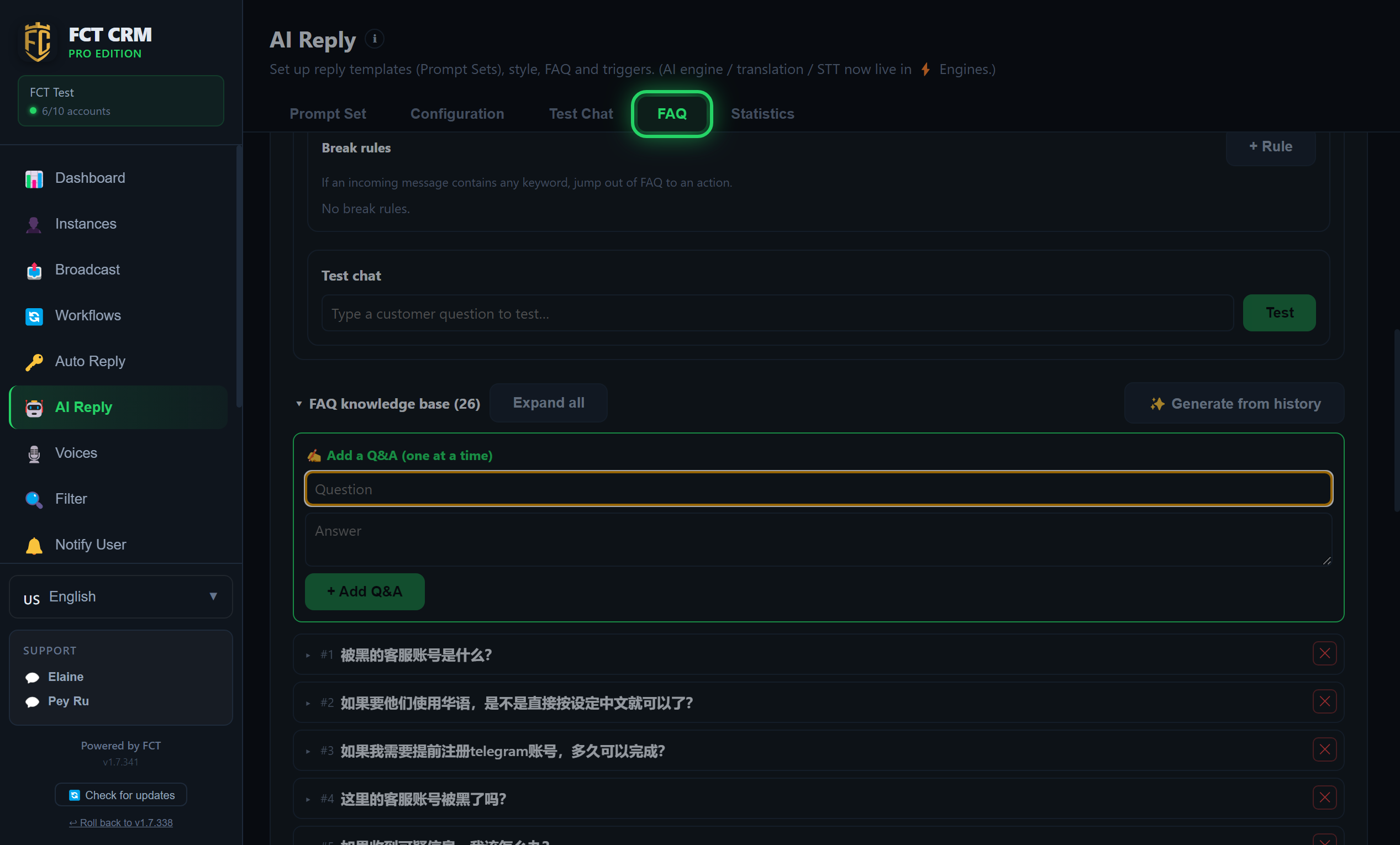
- Click AI Reply in the left menu, then click the FAQ tab at the top of the page.
- Scroll to the very bottom of this page and find the Question-matching model (local · free · offline) section. While the model has not been downloaded yet, this section opens by itself.
- Click Download model. The button changes to Downloading…. Wait for it to finish.
- When it is done, the section shows "Model ready — runs offline." You never need to download it again.
An ordinary computer can run it
This model does not need a dedicated graphics card. If the download fails, check your internet connection first, then click Download model again.
2. Create an FAQ Project and add Q&A
- Create an FAQ Project. You can have several, for example one per product or one per list.
- Add Q&A entries, or click ✨ Generate from history to mine questions and answers from past chats. You can review them before saving.
Here is exactly how to do it:
- Next to FAQ Project, click New project. In the small window that opens, type the project name and click Save.
- Scroll down to Add a Q&A (one at a time) inside FAQ knowledge base. In the Question field, write how a customer would ask. In the Answer field, write what you want to reply.
- Click Add Q&A. The entry appears in the list below. Click it to open it and edit it again.
- To collect entries in bulk from your chat history, click Generate from history: tick the chats to read, click Generate, check and correct the suggested questions and answers, then click Save selected.
- Finally, go to Instances in the left menu, open the account's Edit Account window, choose this project in the FAQ project dropdown, and click Save. The account now uses it to answer customers.
What Generate from history needs first
Generate from history needs the FAQ model to be downloaded and an AI engine to be set up. Otherwise it asks you to complete those first.
3. Choose what happens
- When no answer is found: hand over to a human, pass it to the AI, or do both.
- AI natural answer (optional): instead of sending the stored answer word for word, the AI composes a natural reply using only the matched FAQ. It is less stiff, and still grounded.
- Match accuracy slider: stricter means fewer wrong matches, and looser means more questions get answered.
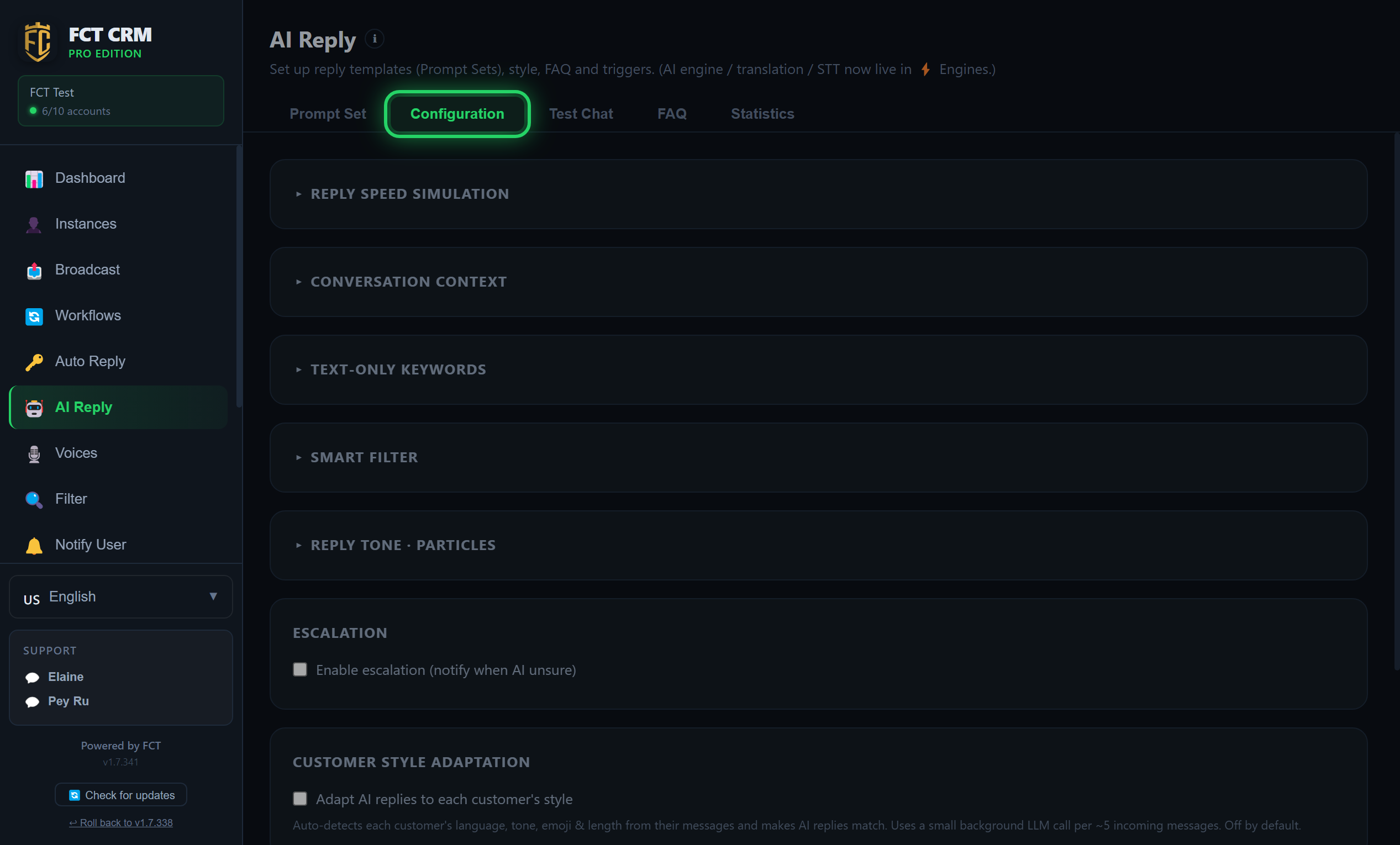
These options are all in the FAQ tab, and they belong to the FAQ project that is currently selected:
- In the FAQ tab, scroll down and click When no answer is found to expand it.
- Under When no answer is found →, choose one option: Escalate to human (recommended, no token cost), LLM fallback (uses AI Reply — may be inaccurate), or Both (LLM answers + notify you to correct/save).
- If you chose to escalate to a human, you can write a sentence in the field below to send to the customer while they wait. Leave it empty and the customer gets no reply for now, and is only answered after you reply.
- To make the tone more natural, tick AI natural answer (compose reply from matched FAQ). Leave it unticked and your stored answer is sent exactly as written.
- Drag the Match accuracy slider. Dragging towards stricter (fewer wrong) gives fewer hits and more handovers to a human. Dragging towards looser (more answers) does the opposite.
Before you hand over to the AI
When you choose LLM fallback or Both, the account must have AI Reply switched on and an AI prompt assigned. Otherwise, when a customer asks something the FAQ cannot answer, they receive no reply at all.
4. Test it
- Expand When no answer is found, type a sentence a customer might ask into the Test chat inside it, and click Test. Before going live, you can see whether it is a hit or a miss, the similarity score, and the question and answer that were matched.
Tips
Zero hallucination by default
With AI natural answer turned off, the FAQ sends your stored answer exactly as written. It never makes anything up.
Escalation needs Notify User
Escalating to a human uses the number you set under Notify User. Set it up so that the owner's 1/2/3 replies can work.