Instances (Accounts & Workbench)
This is where you add, connect and manage your WhatsApp accounts. It is the first thing to set up.
First expand Manage Accounts at the top, then click Add Account to add a WhatsApp account.
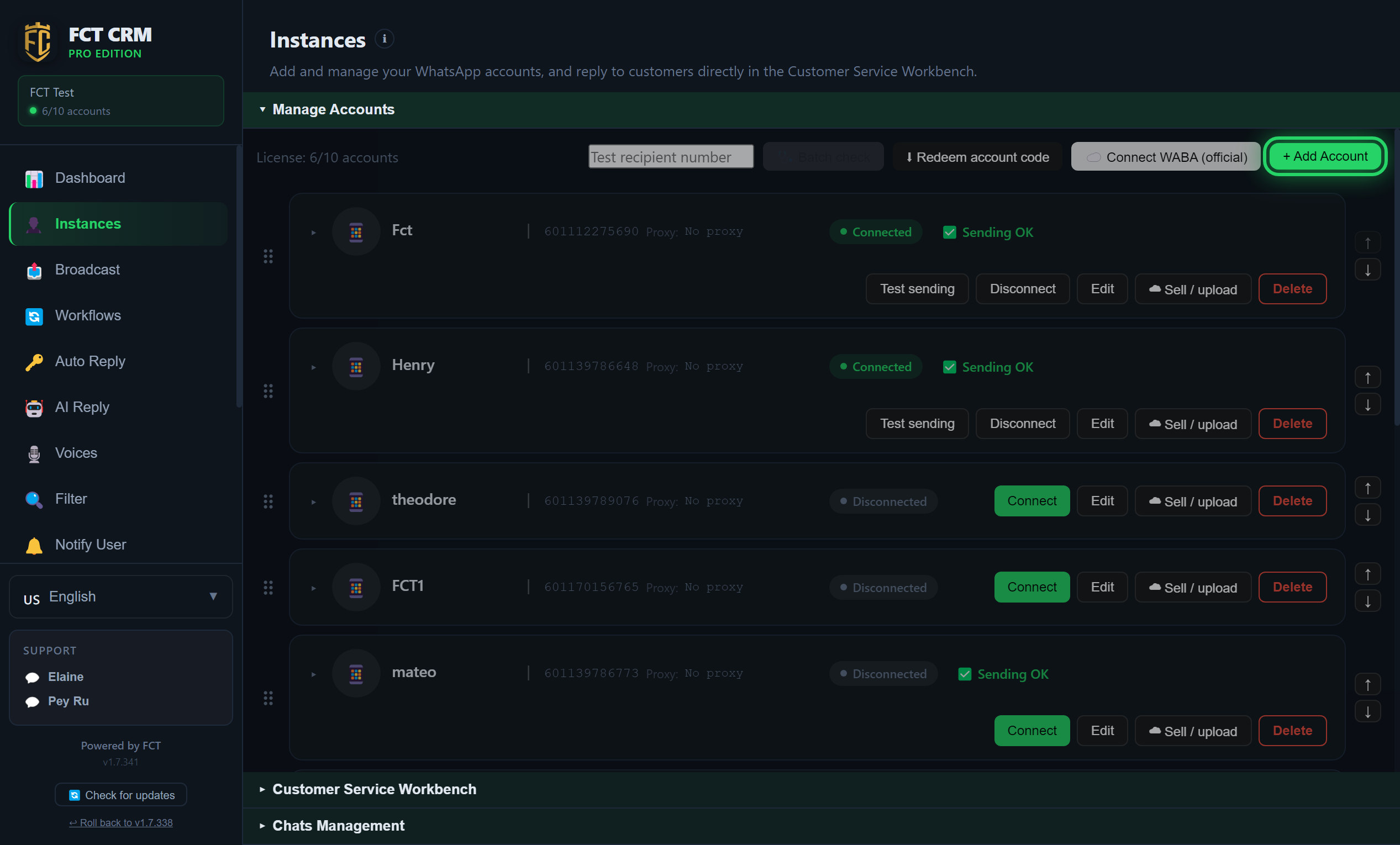
- Click Instances in the left sidebar.
- The page has three sections that can be expanded: Manage Accounts, Customer Service Workbench and Chats Management. Click Manage Accounts to expand it, and your list of accounts appears underneath.
- Look at License at the top left of the list. The numbers after it tell you how many accounts you have used and how many you can add in total.
- Each account is one row. After the name come the number, the proxy and the status. A green Connected status means the number is online. If it says Disconnected, click the green Connect button on the right of that row.
- To add a new number, click the green + Add Account button at the top right. A small Add Account window opens.
The Add Account button cannot be clicked?
A greyed-out button means the number of accounts has reached the limit of your licence. Delete an account you no longer use, or upgrade your plan, before adding more.
Enter a name (the phone number and proxy are optional), then click Add.
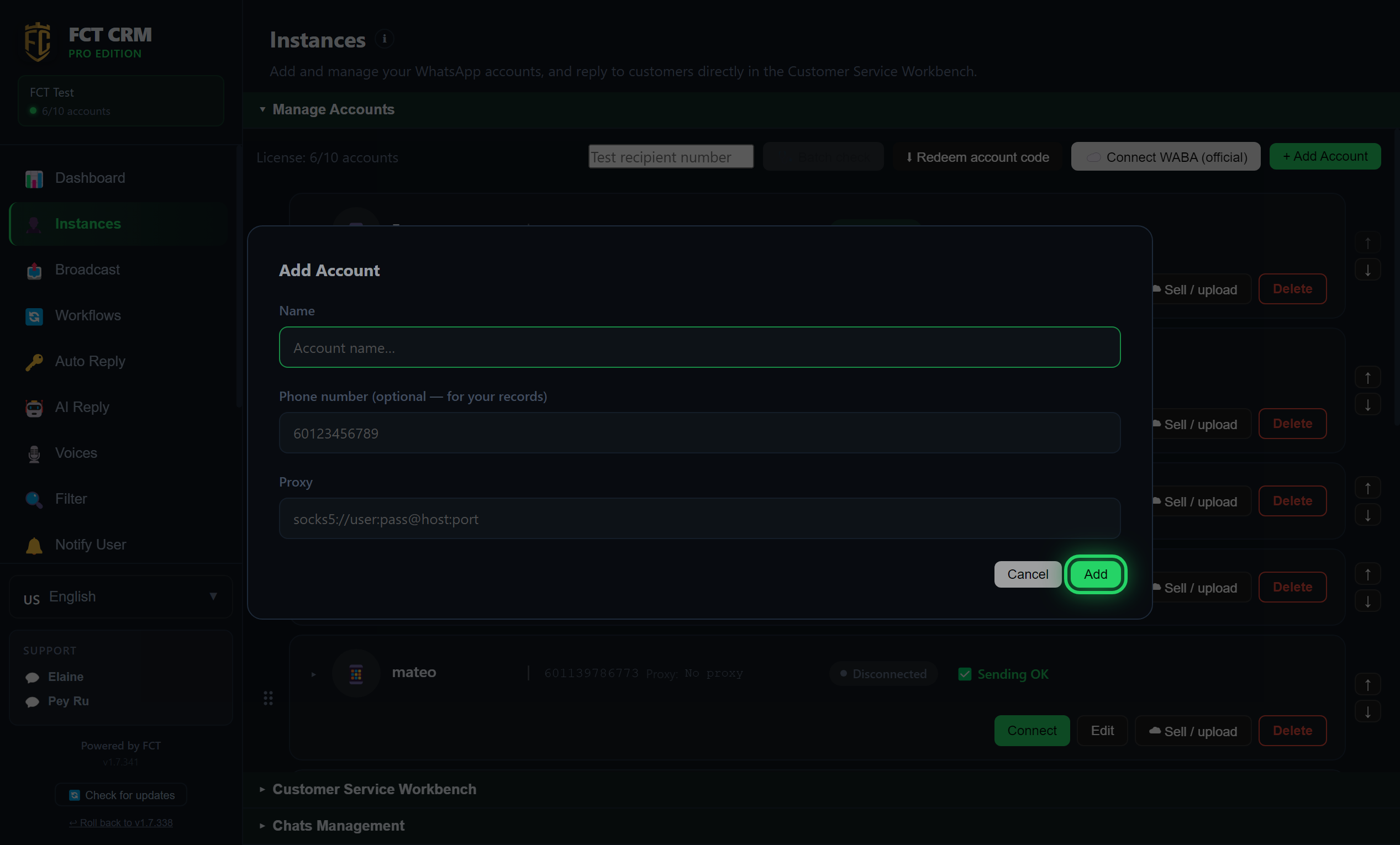
- Under Name, type a name you will recognise yourself, for example "Sales One".
- Phone number can be left empty. It is only a note for your own records and does not affect logging in.
- Proxy can be left empty too. You only need to fill it in when you want this number to go through a proxy. If you are not sure, leave it empty.
- Click the green Add button at the bottom right. The small window closes and the new account appears in the list with the status Disconnected.
- On the new account's row, click QR Login. A Scan QR Code window opens on screen. Scan it with WhatsApp on your phone.
- After the scan, the window closes by itself and the status changes to a green Connected.
Cannot see QR Login?
If you filled in a phone number when adding the account, the row shows Connect instead. Click Connect, wait for the status to change to Scan QR, then click the QR button that appears next to it to see the QR code.
Click Edit on an account to configure it.
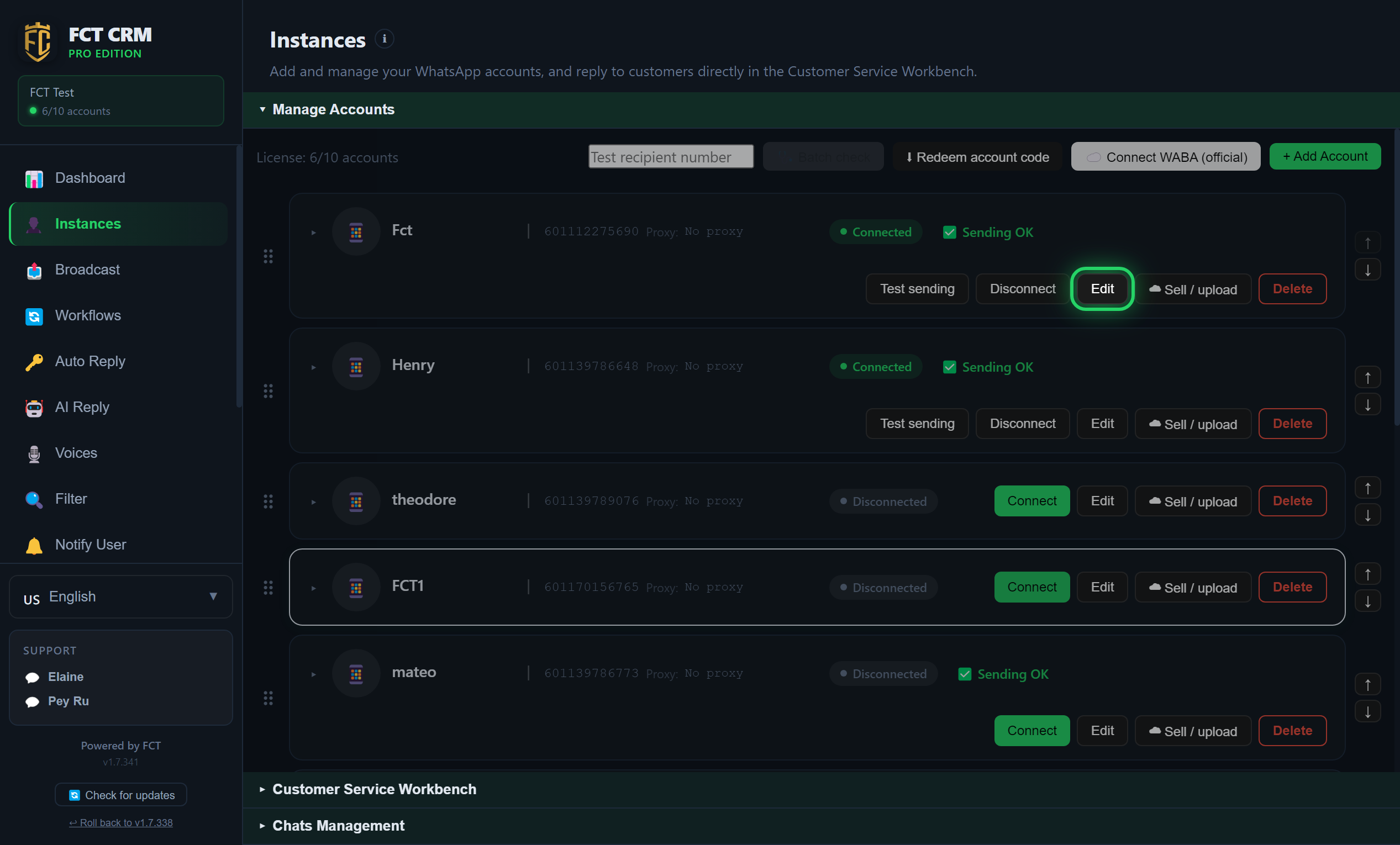
- Find the number you want to configure in the account list.
- Look at the row of buttons on the right of that row. A connected number has Test sending, Disconnect, Edit and a red Delete. A disconnected number has Connect, Edit and Delete.
- Click Edit. The Edit Account window opens, and all the settings of this number are inside it.
- To confirm that this number can actually send messages, click Test sending, fill in a real recipient number, then click Send.
- If you only want a quick look at how this number is currently configured, you do not need to click Edit. Click the empty part of the row instead, and a configuration summary expands underneath. Click again to collapse it.
Be careful with Delete
Clicking Delete first opens a confirmation window. Once you confirm, the account is removed from the list. If you only want to take it offline for a while, Disconnect is enough, and you can click Connect later to bring it back.
Here you set the connection type, auto-reply, default voices, working hours and more.
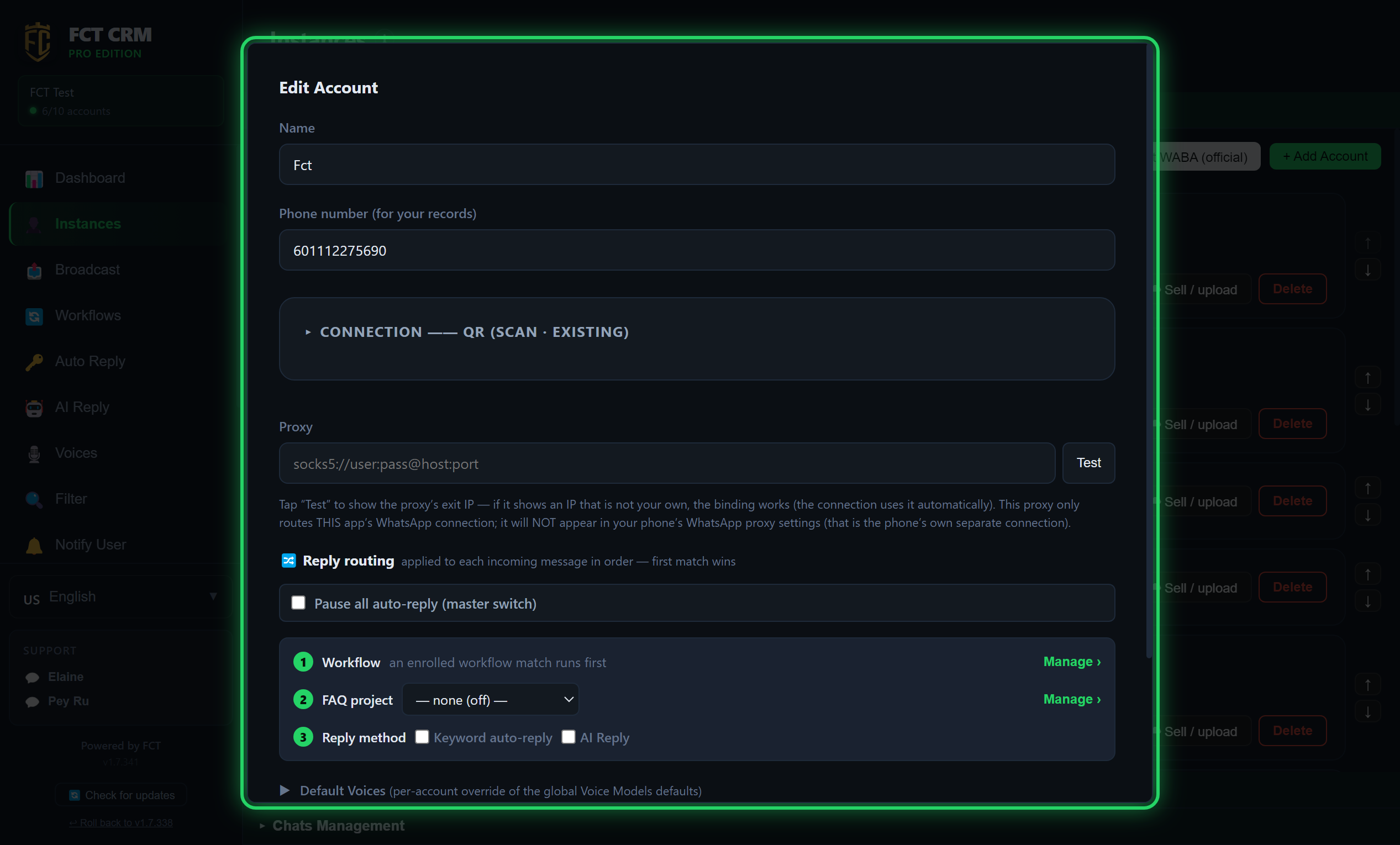
- At the very top you can change the Name and the Phone number. The phone number is only for your own records.
- Click Connection to expand it. It has two choices: QR (scan · existing) and WABA (official). For an ordinary QR-scanned number, keep it on QR. There is nothing to change.
- To use a proxy, fill in its address under Proxy and click Test on the right. If an exit IP is shown, the proxy works. When no proxy is filled in, this button is called Check my exit IP.
- Reply routing decides who replies after this number receives a message. It goes through Workflow, FAQ project and Reply method in that order, and once an earlier one has answered, it does not go any further.
- Choose a project in the FAQ project dropdown. Under Reply method, tick Keyword auto-reply or AI Reply. If you tick the keyword option, you also need to choose a reply set under Reply Set (Project).
- Scroll down and you can also set this number's Default Voices and Working Hours.
- When everything has been changed, click Save at the very bottom of the window.
Ticked, but it does not reply?
If you tick Keyword auto-reply without choosing a reply set, this number's auto-reply does not fire. If you want this number to stop all automatic replies for a while, just tick Pause all auto-reply (master switch).