Broadcast
Send a message to many contacts at once. There are six tabs at the top: Compose, Broadcast Sets, Contact Lists, Unsubscribed, Blacklisted and Report.
Compose: pick a broadcast set and a contact list on the account card, then send.
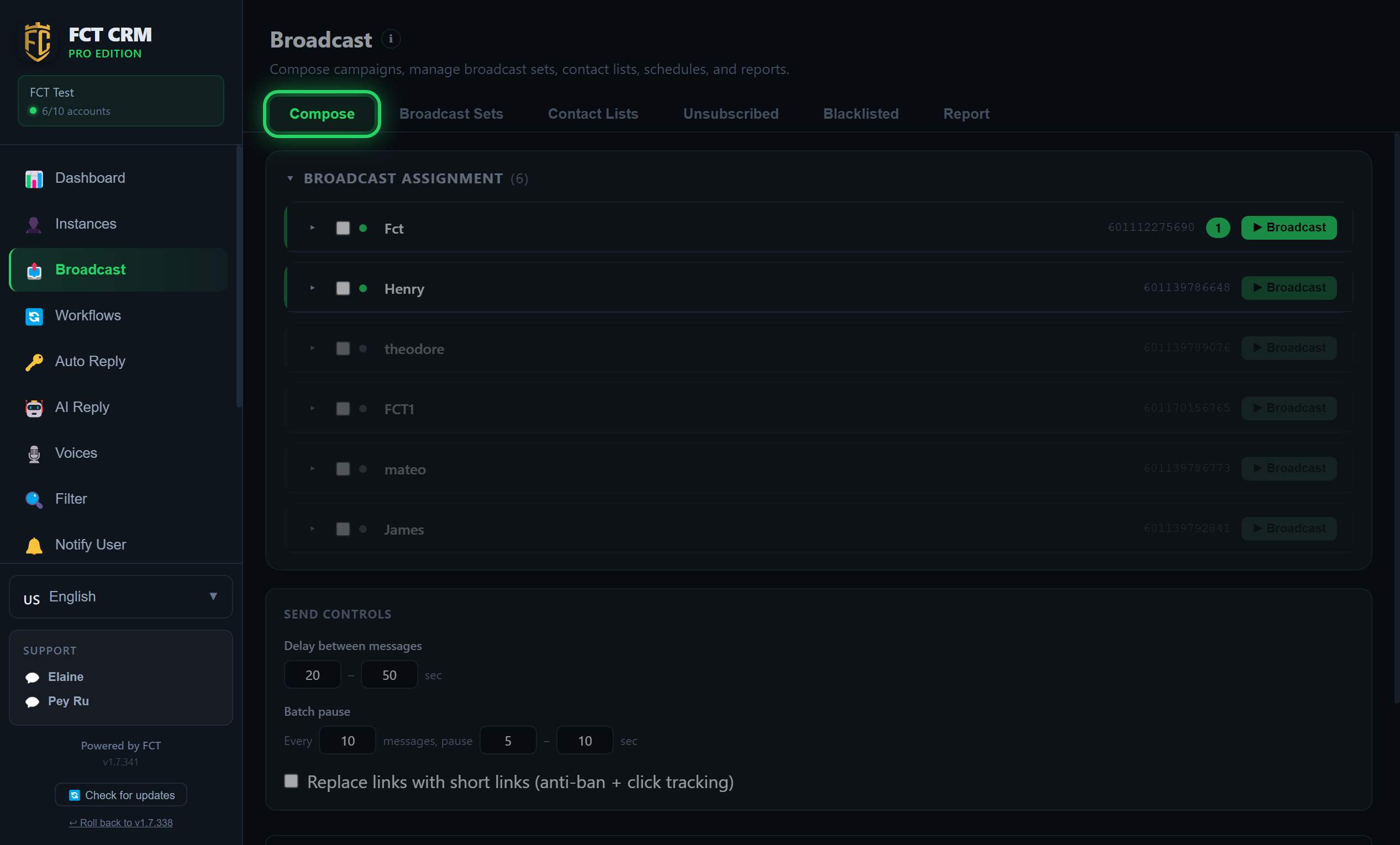
- Click Broadcast in the sidebar and stay on the Compose tab. Under Broadcast Assignment, each account is a card. Expand the card of the account you want to send from.
- In the Broadcast Set field, click Select set… and choose a set. The chosen set shows as a small chip underneath. Click the cross on the chip to remove it.
- Under Schedule, choose Now. To send later, choose Schedule once and fill in the date and time. Choose Recurring to repeat it daily, weekly or monthly.
- Under Contact Lists, click Add list and pick the list to send to. You can also click Add tag under By Tag. The total number of contacts is shown next to it.
- Leave Qty empty to send to everyone in the list. To send to only part of the list first, type a number.
- Click the green Broadcast button at the top right of the card. The button changes to Sending…, and the Sent, Failed and Pending counts at the bottom of the card start to move. If you chose a scheduled send, this button reads Schedule instead.
Be patient after you click
Messages are deliberately spaced apart, so the first one does not go out instantly. This is normal, and you do not need to click again. When the button cannot be clicked, the card states the reason, for example that no broadcast set is chosen yet, or that the account is disconnected.
Broadcast Sets: create reusable message templates.
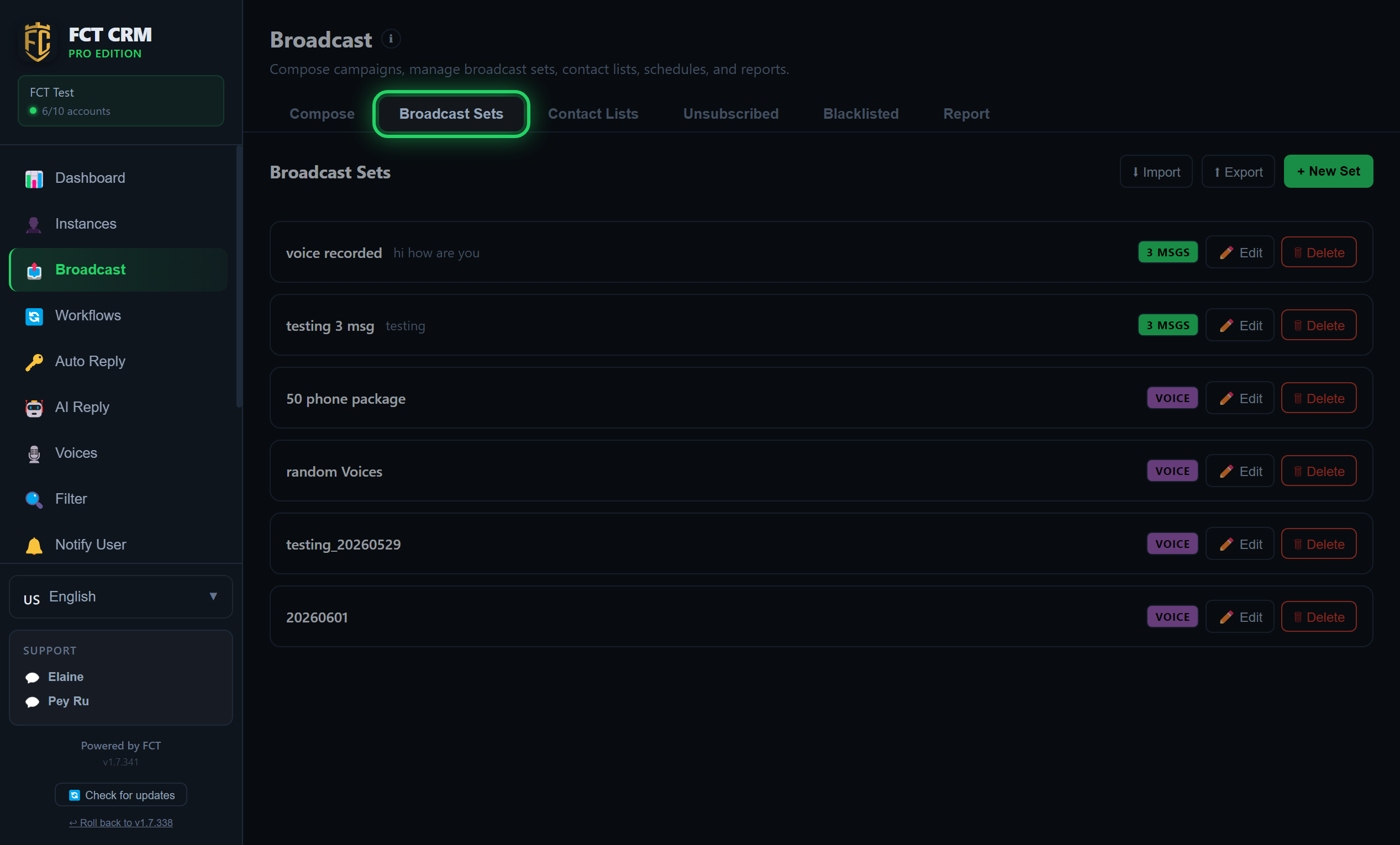
- Click the Broadcast Sets tab, then click the green New Set button at the top right. You go straight into the editor.
- In the name box at the very top, give the set a name, for example "Morning Promo".
- Write the message in the text box. To include an image or a video, click Attach media. To add buttons, click Buttons. To send a voice note, switch this message to Voice.
- If you want one set to send several messages in a row, click Add Message and write the next one.
- Click Save Set. A tick appears next to it when it has been saved. Click Back to return to the list.
- Back on the list, each set is one row. The small coloured badges on the right tell you whether it is text, image or voice, or how many messages it contains. Click Edit to change it and Delete to remove it. Drag the whole row, or click the up and down arrows on the left, to change the order.
Keep button text short
Button text can be at most 40 characters on a QR-scanned number and at most 20 characters on a WABA number, so keep it as short as you can.
Contact Lists: import and manage recipient lists.
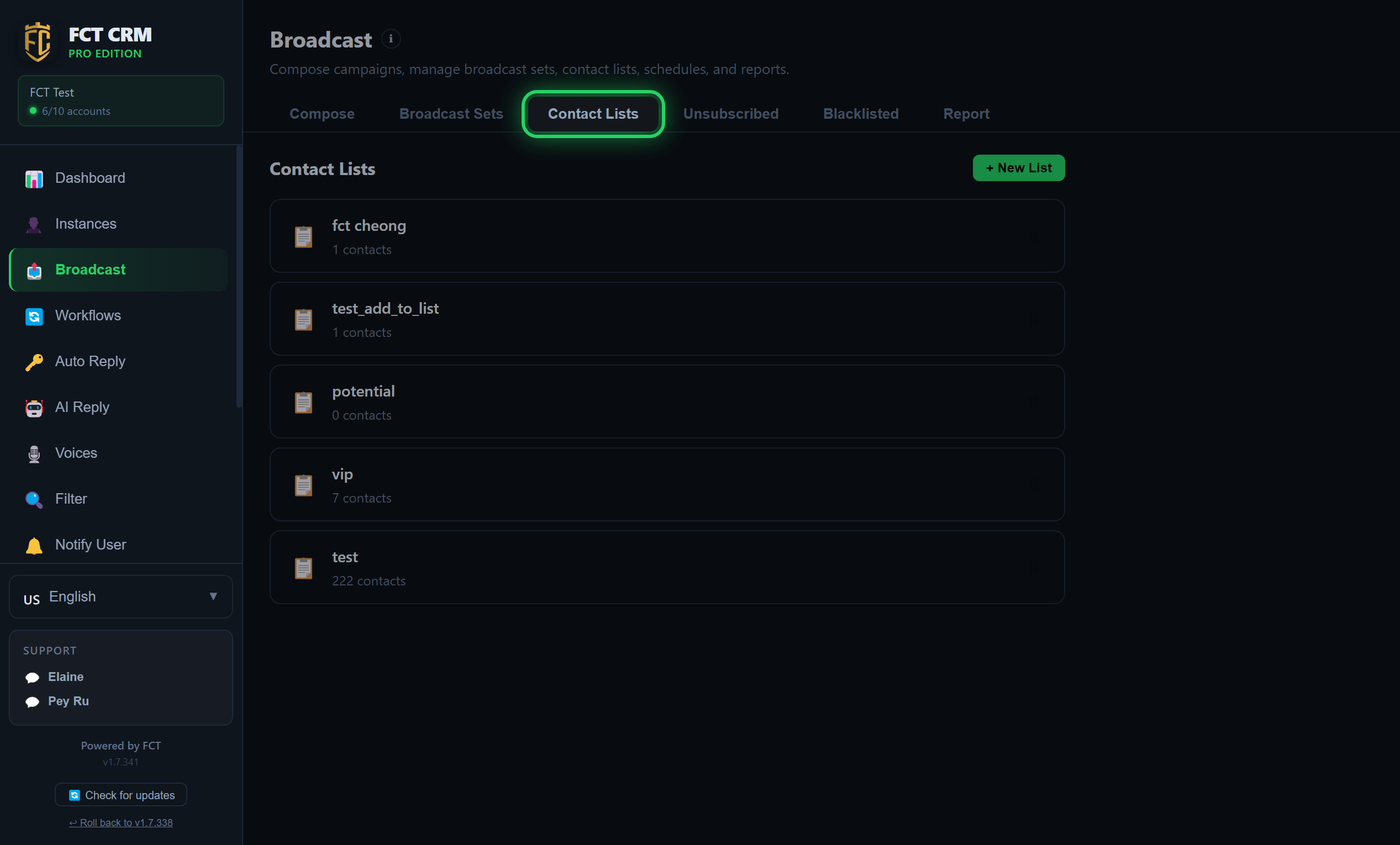
- Click the Contact Lists tab. You will see all your lists, each with the number of contacts written underneath.
- To create a new list, click the green New List button at the top right, type a name, then click Save. The new list appears in the list.
- Click a list to open it, then click Edit Members.
- There are three ways to add people here. Select Contacts lets you tick existing contacts and then click the save button at the top. Type Numbers lets you paste one number per line and then click Import Numbers. Upload File lets you click Choose File to pick an Excel or CSV file, look at the preview, and then click Import to List.
- When the import finishes, the page shows how many were added and how many were skipped. Click Back, and the contact count under the list is updated.
For the import methods in more detail, see Contacts & Lists.
Report: see the successes and failures of every send, resend to the failed numbers with Resend, or click CSV to export the record of that run.
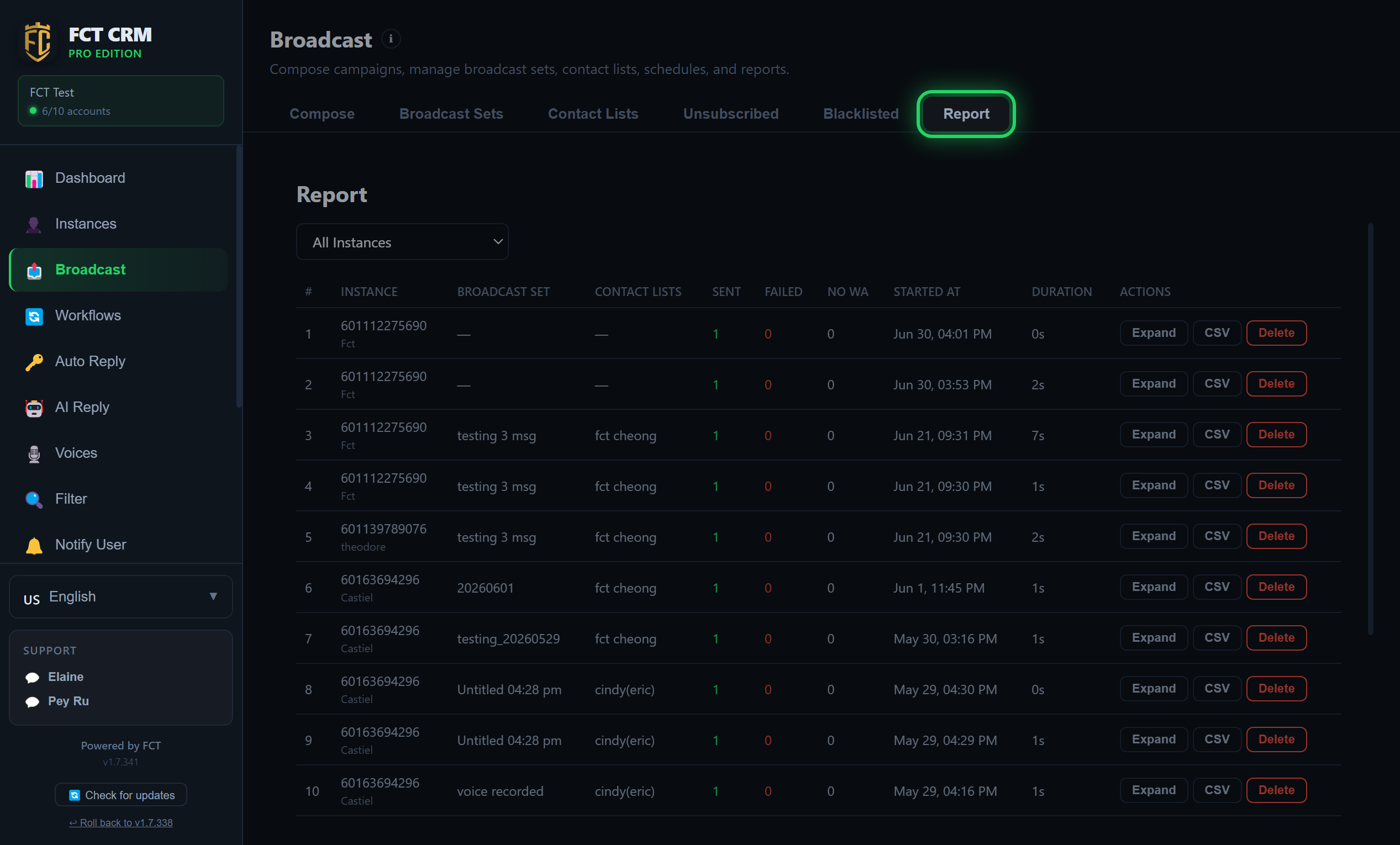
- Click the Report tab. Each broadcast is one row, showing which account, which set and which contact list were used, and how many were Sent, Failed and No WA.
- When you have many accounts, click the All Instances dropdown at the top to see the records of just one account.
- Click Expand on a row to see the name, phone, status and send time of every number. Click it again to collapse the row.
- Click CSV to export the record of that broadcast as a file.
- Click Delete on a record you no longer need. It is removed once you confirm, and this step cannot be undone.
- To resend to the failed numbers, you have to do it for the run that has just finished: go back to the Compose tab, click the small chart icon on that account card to open the Broadcast Report, click Select All Failed, choose an account in the dropdown, then click Resend.
What does No WA mean?
No WA means the number does not have WhatsApp, so nothing was sent to it. It does not count as a failed send.
Tips
Picking several broadcast sets at once
When you choose several broadcast sets on an account card, each recipient receives just one of them at random, not all of them. This helps protect the number from being banned.
Cancelling a broadcast
Clicking Cancel Broadcast stops it immediately, including a multi-message set that is halfway through. Both the card and the report mark it as cancelled.
Unsubscribed and Blacklisted
Unsubscribed is filled automatically when a customer replies with an unsubscribe keyword. Blacklisted is a list you add to by hand. Numbers in either list are skipped automatically when you broadcast.