Voice Messages
Clone a voice and send natural-sounding voice notes. There are two tabs at the top of the page: Voice Clone and Voice Campaign. Voice models live inside the Voice Clone tab.
1. Voice Clone: type text, pick a voice, set the speed and tone, then click Generate and listen. If you like it, use Save as Voice Set so you can reuse it. You can also record or upload your own audio, or use My voices.
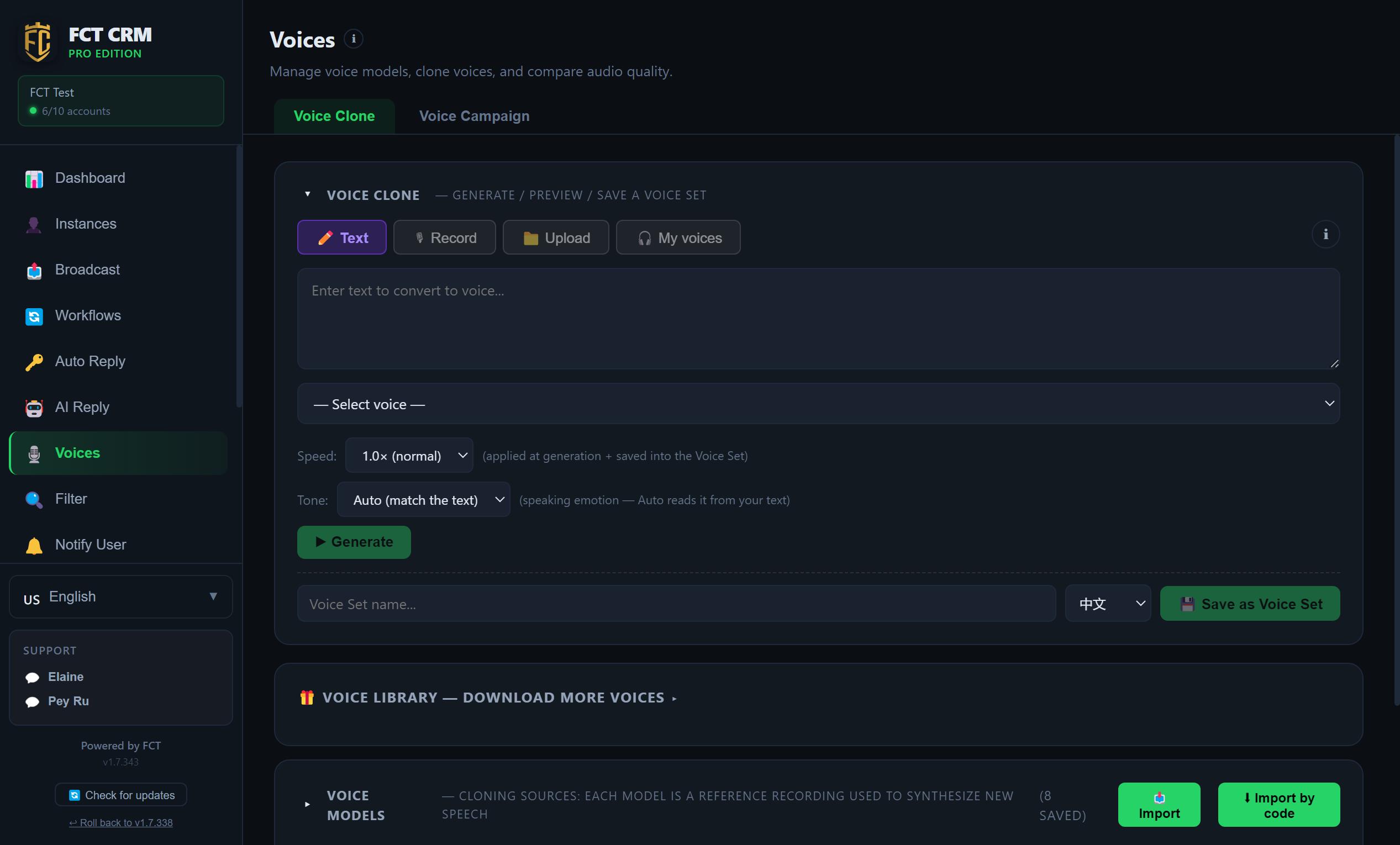
- Click Voices in the left menu. The page opens on the Voice Clone tab. In the row of buttons at the top, choose Text.
- In the large input box, type what you want it to say.
- Click the Select voice dropdown and choose a voice.
- Speed is normally left at 1.0, which is normal speed. Tone can stay on Auto (match the text). Tone is only supported by ElevenLabs cloud voices, and local engines ignore it.
- Click Generate. When it is done, Ready appears next to the button and a player bar is added below. Click it to listen.
- If you are happy with it, type a name in Voice Set name..., choose the language, and click Save as Voice Set. It is finished when you see Saved. If you are not happy, change the text or switch the voice and click Generate again.
Use your own voice
Click Record or Upload. After you record a clip or choose an audio file, Save my voice appears. Fill in a name and what the recording says, tick Save as Voice Model, then click Save my voice. From then on you can choose it under Select voice.
2. Voice models are your cloning sources, and they live in the Voice Clone tab. Each one is a reference recording used to synthesise new speech, and it is never sent out directly. You can import your own, or open the Voice Library to download more.
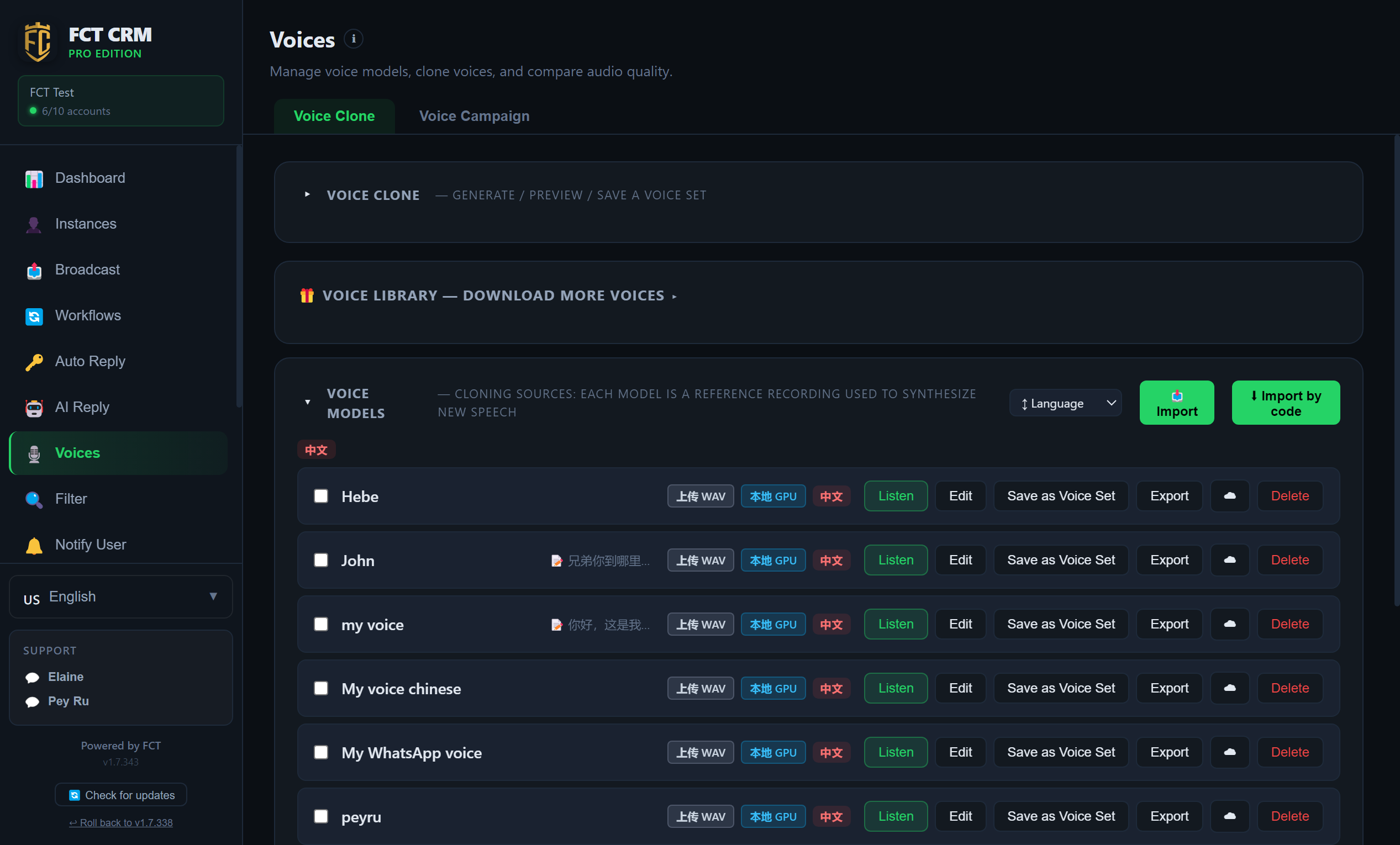
- In the Voice Clone tab, scroll down and click the Voice Models bar to expand it.
- Each model takes one row. Click Listen to hear the original reference recording of this voice.
- Click Edit to change the settings of this model. Click Delete to remove it.
- Click Save as Voice Set to save this reference recording itself as a voice set that can be sent directly.
- To take a model to another computer, click Export to save it as a file. On the other computer, click Import at the top right and choose that file. When someone gives you a share code, click Import by code and type it in.
- If you want more voices, click Voice Library — download more voices above to expand it. Click Preview first, and click Download if you like the voice. Once it shows Downloaded, it can be used as a voice model.
3. Voice Campaign: send a voice note to a whole contact list. It works like a broadcast, but what goes out is a voice note.
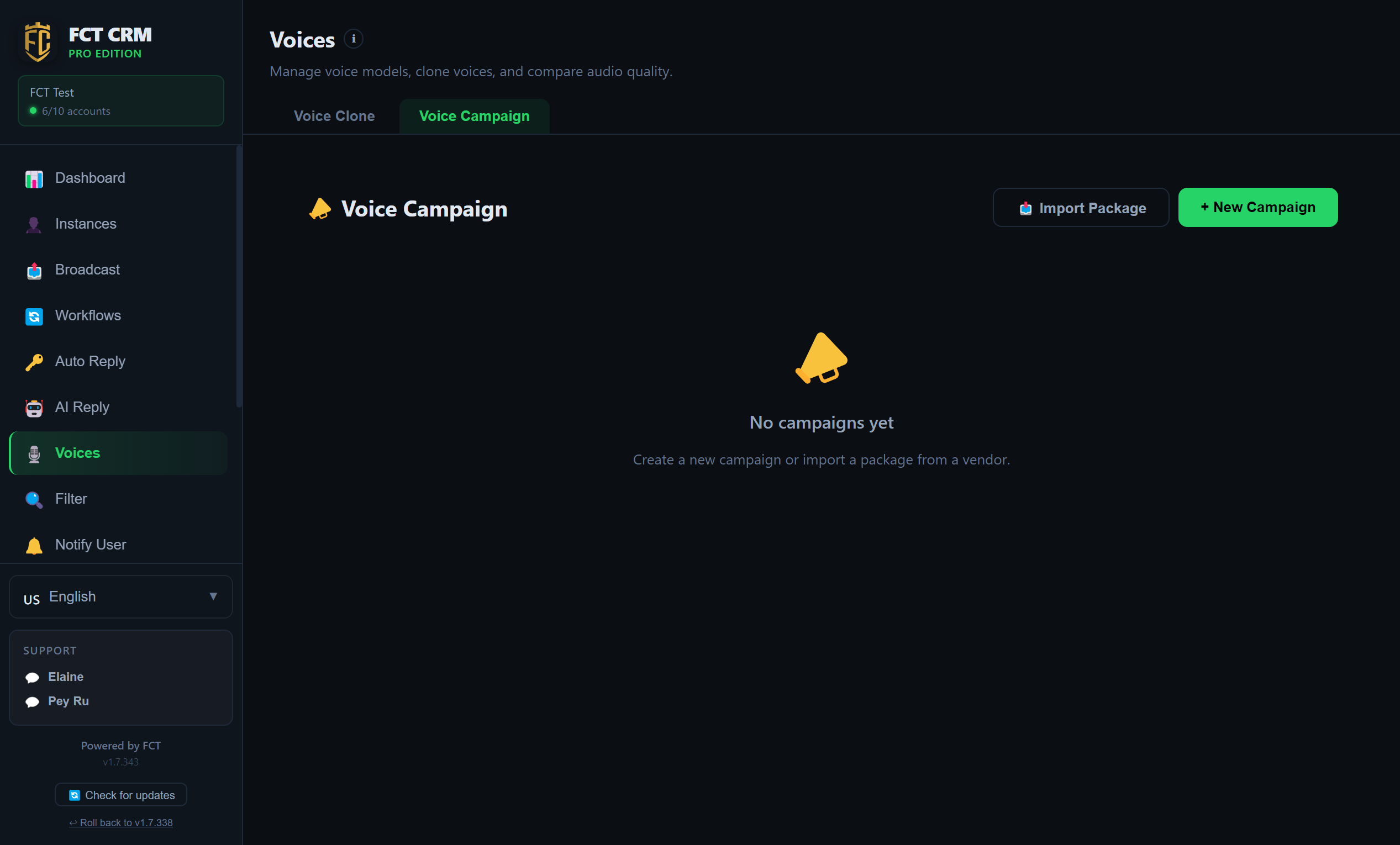
- Click the Voice Campaign tab at the top, then click New Campaign at the top right.
- The first step is importing the list. Drag an Excel or CSV file into the dashed box. The first row of the file must be headers: column A is the name, column B is the phone number, and column C is what should be said.
- Fill in the Campaign Name, choose a voice under Voice Model, adjust Speed if needed, then click Continue. Until the list, the name and the voice are all in place, Continue cannot be clicked.
- In the second step, click Start Generating. Each row gets its own voice note in the chosen voice, and its status changes to Ready. On a row that failed, you can click Retry.
- When everything is ready, click Send Campaign. Tick the WhatsApp accounts to send from, set Delay Min (seconds) and Delay Max (seconds), then click the send button at the very bottom.
- To stop partway through sending, click Stop Sending.
If you already have a finished campaign package file, click Import Package to load it directly, and you do not need to generate anything yourself.
Tone
Leave Tone on Auto and it reads the emotion from the text. You can also choose a tone yourself, such as Warm, Lively or Serious, to make the voice sound more like a real person.
The difference between a voice model and a voice set
A voice model is a cloned voice, used to turn text into new speech. A voice set is a finished clip that can be sent as it is.