Connect WhatsApp
Pair your WhatsApp number with FCT CRM so you can send and receive messages.
Steps
- Open Instances in the sidebar and expand Manage Accounts at the top.
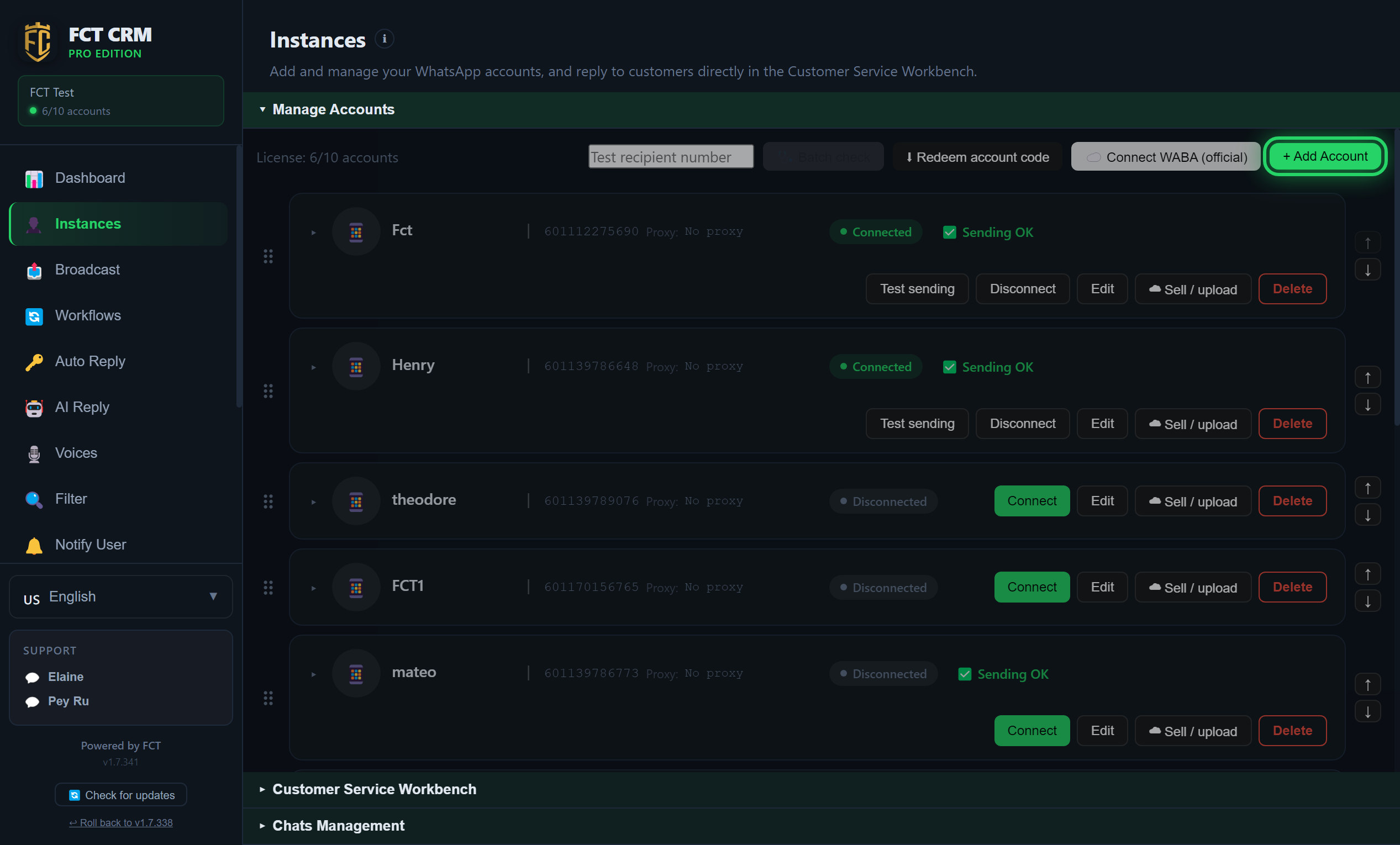
Click + Add Account at the top right. In the window that opens, fill in a Name. The phone number and the proxy can be left empty. Then click Add. The new account appears in the list with the status Disconnected.
On the new account's row, click QR Login. A Scan QR Code window opens on screen. Then, on your phone, open WhatsApp → Settings → Linked Devices → Link a Device and scan the QR code that FCT CRM is showing.
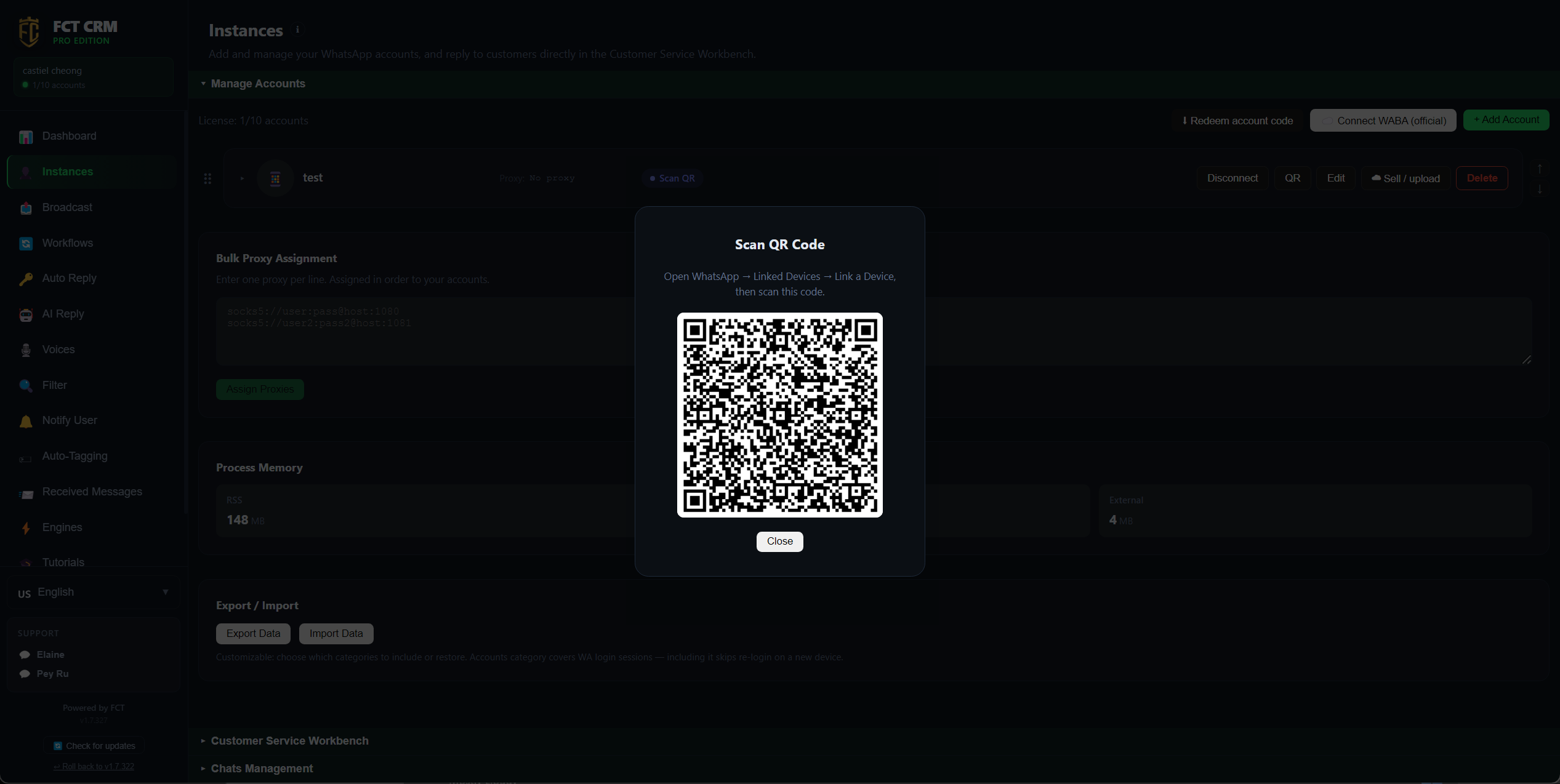
- After a successful scan, the QR window closes by itself. Wait until the account's status changes to Connected (green). The number can now send and receive messages.
The QR code expired, or you cannot see QR Login?
When the window says the QR code has expired, click Close and connect again. If you filled in a phone number when adding the account, the row shows Connect instead: click it, wait for the status to change to Scan QR, then click the QR button next to it to see the QR code.
Tips
Keep the phone online
The paired phone needs to stay connected to the internet for messages to sync reliably.
Do not send too hard
Sending too fast to a large number of strangers can get your number restricted by WhatsApp. The app has built-in send throttling and a warm-up for newly connected numbers (see below).
Want to connect an official WhatsApp Business number (WABA)?
If you want to use an officially verified WhatsApp Business Platform (WABA) number instead of an ordinary QR-scanned number, read the one-click WABA onboarding walkthrough. The process is different, and it needs a brand-new phone number.
Just connected and no auto-reply? That is the warm-up
Right after a number connects, its account card shows "Warming up — auto replies start in about N minutes". During this time, automatic sending (keyword replies, workflows, FAQ and AI replies) is held back. It goes out as normal when the warm-up ends, and nothing is skipped. Your manual replies and the broadcasts you start yourself are not affected. A fresh QR scan warms up for 60 minutes by default. You can adjust this or turn it off in Settings → Send throttle / anti-restriction.
Shows Connected, but no messages arrive?
When the account card shows the red text "Not receiving — open WhatsApp on the phone first", the number can still send, but it is no longer receiving messages. Usually the phone has been offline for too long.
- First open WhatsApp on the phone and go to Linked Devices. Check whether this computer is shown as online again. It normally recovers by itself within a few minutes, and the red text disappears.
- Only if messages still do not arrive after a few minutes do you need to scan the QR code again.